Your Photos Are Already Half of a Great Video
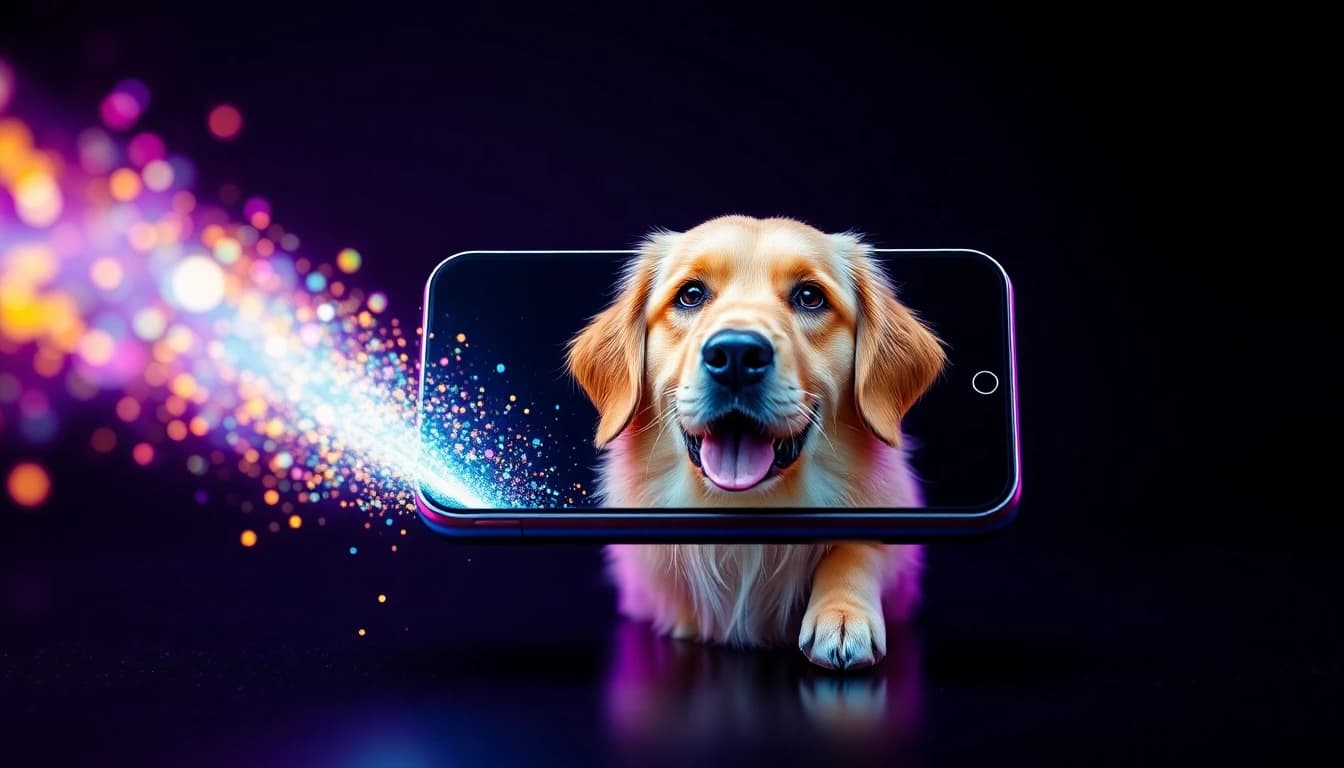
Still images capture a single moment. AI video from image technology brings that moment to life. In 2026, you can take any photograph, whether a portrait, landscape, product shot, or creative artwork, and turn it into a fully animated video with a single tap and a short text prompt.
This is not a gimmick. Image-to-video AI has become one of the most practical and popular features in AI video generation. According to Adobe's 2026 Creative Trends Report, over 60 percent of content creators now use some form of AI-assisted animation in their workflow, and photo-to-video conversion is the fastest growing category.
VIBE is an AI video generator app that lets you create stunning videos from text prompts or images using the latest AI models like Kling, Sora, and Veo. Its image-to-video feature supports multiple AI models, giving you complete control over how your photo comes to life. Here is everything you need to know about turning photos into videos with AI.
How AI Video From Image Actually Works
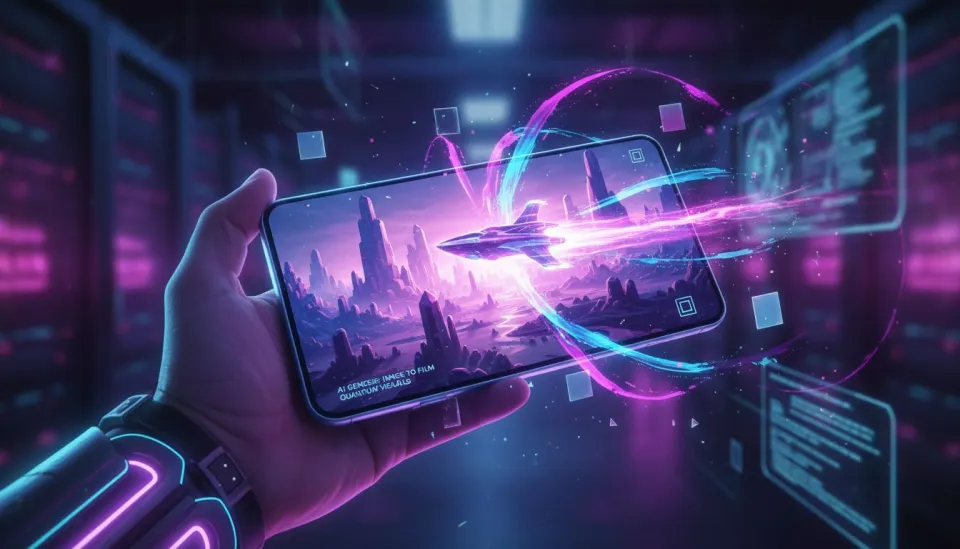
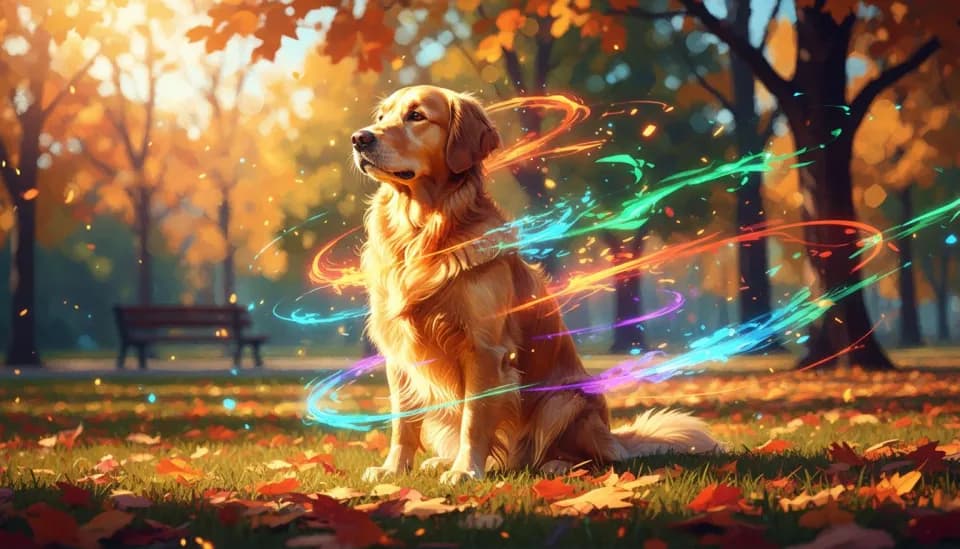
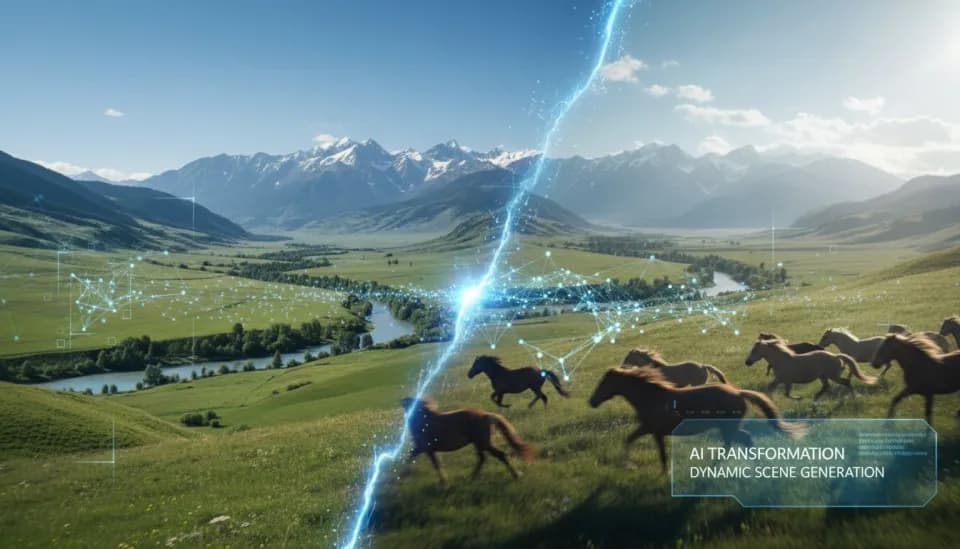
When you upload a photo to an AI video generator, the model does not simply pan and zoom across the image the way older tools did. Modern image-to-video AI models analyze the content of your photo, identify objects, depth layers, lighting sources, and spatial relationships, then generate entirely new video frames that extend the original image into motion.
The AI predicts what would happen next if the camera kept recording. Clouds drift across the sky. Hair sways in the breeze. Water begins to flow. Facial expressions shift. The source image becomes the first frame, and the model generates everything that follows.
This approach delivers far more convincing results than traditional photo animation because the AI understands the 3D structure of the scene rather than just manipulating a flat image.
Best AI Models for Image-to-Video Generation
Not every AI video model handles image-to-video equally well. Each model brings different strengths to the table. Inside VIBE, you can test the same photo across multiple models and pick the result that works best.
Google Veo 3.1: Best for Photorealistic Animation
Veo 3.1 maintains the highest fidelity to the original image while adding natural, physically accurate motion. If your source photo is a real photograph and you want the video to look like real footage, Veo is the top choice. It excels at natural scenes, product photos, and landscape images where accurate physics and lighting matter.
According to research from Stanford's Human-Centered AI Institute, image-conditioned video generation models that preserve source fidelity score significantly higher in viewer trust. Veo 3.1 leads this category.
Kling 3: Best for Portrait and People Photos
When your source image features a person, Kling 3 produces the most natural-looking animation. Subtle facial movements, realistic eye contact, natural breathing motion, and authentic body language make portrait photo-to-video conversions feel genuinely alive. For AI video from photo of people, Kling 3 is the go-to model.
Sora 2: Best for Cinematic Interpretation
Sora 2 takes creative liberty with source images, adding dramatic camera movements and cinematic lighting adjustments that transform a simple photo into something that feels like a movie scene. If you want your photo animation to feel cinematic rather than documentary, Sora 2 is the right choice.
Seedance 2: Best for Adding Dynamic Movement
If your source image shows a person and you want them to move expressively, Seedance 2 generates the most fluid body motion. It is particularly effective for turning fashion photos into dynamic runway-style clips or converting casual portraits into energetic social media content.
Step-by-Step: How to Turn a Photo Into a Video with VIBE
The process is straightforward. Here is the exact workflow for creating AI video from any image.
Step 1: Choose Your Photo
Select a high-quality source image. Resolution matters. The sharper and more detailed your original photo, the better the AI can interpret and animate it. Avoid heavily compressed images, overly dark photos, or images with significant noise or blur.
Best source images for AI video:
- Well-lit portraits with clear facial features
- Landscape photos with distinct depth layers (foreground, middle ground, background)
- Product shots with clean backgrounds and good lighting
- Artistic images with strong composition and color
Step 2: Select an AI Model
Open VIBE and choose the model that matches your goal. Use Veo 3.1 for maximum realism, Kling 3 for people photos, Sora 2 for cinematic drama, or Seedance 2 for expressive movement. Not sure which model to use? Try your photo on two or three models and compare.
Step 3: Add a Motion Prompt
This is where the magic happens. Your text prompt tells the AI what kind of motion to add. Be specific about the movement you want.
Effective motion prompts for image-to-video:
- "Gentle camera push forward, wind moving through the trees, clouds drifting slowly"
- "Subject turns head slightly toward camera, subtle smile, eyes meet the lens"
- "Slow orbit around the product, light shifting across the surface, subtle reflections"
- "Ocean waves begin to move, spray mist in the air, seagulls take flight in the background"
Step 4: Generate and Refine
Generate the video. If the first result is not exactly what you wanted, adjust your prompt. Often, small changes like adding "slow" before a movement or specifying the direction of light produce significantly better results.
Make your first AI video in 60 seconds
Generate AI videos with Kling, Veo, Sora and more — free on iOS and Android.


Creative Use Cases for AI Video From Photo
Social Media Content
Turn a single product photo into a TikTok or Instagram Reel without filming anything. Fashion brands, food photographers, and lifestyle creators are using AI video from image to multiply their content output from existing photo libraries.
E-Commerce Product Videos
Product listing videos consistently outperform static images in conversion rate. Instead of hiring a videographer, upload your existing product photos and generate professional-looking product videos. Veo 3.1 handles product materials like glass, metal, fabric, and leather with impressive accuracy.
Personal Memories
Animate old family photos, travel snapshots, or pet portraits. Watching a still memory come to life with natural motion creates an emotional impact that resonates deeply. This is one of the most popular consumer use cases for AI video from photo technology.
Real Estate and Architecture
Turn property photographs into virtual walkthrough-style videos. AI can add subtle camera movement that creates an immersive sense of space, making listings more engaging without requiring a professional video crew.
Art and Creative Projects
Artists and illustrators are using image-to-video AI to bring their static artwork to life. A digital painting becomes an animated scene. A sketch transforms into a moving illustration. The creative possibilities are enormous.
Tips for the Best Image-to-Video Results
Use High-Resolution Source Images
AI models extract more detail from higher resolution images. A 4K photo produces noticeably better video than a compressed thumbnail. When possible, use the original, uncompressed version of your photo.
Match the Model to the Content
Do not use a landscape-optimized model for a portrait photo or vice versa. Kling 3 for people, Veo 3.1 for products and scenes, Sora 2 for cinematic effect. The best AI video generator apps give you this model flexibility.
Write Prompts That Describe Motion, Not the Image
The AI already sees your image. Your prompt should describe what happens next, not what the photo looks like. Instead of "a sunset over the ocean," write "gentle waves rolling onto shore, golden light reflecting on the water surface, slow camera tilt upward toward the sky."
Keep Initial Movement Subtle
The most realistic image-to-video animations start with subtle motion and gradually build. Prompting for explosive or dramatic movement from a still image often produces artifacts. Start gentle and iterate toward more dynamic motion.
Experiment With Multiple Models
The same photo can produce wildly different results across different AI models. One of the biggest advantages of a multi-model app like VIBE is the ability to test your image on Veo, Kling, Sora, and others to find the perfect interpretation. What looks average on one model might be stunning on another.
AI Video From Image vs Text-to-Video: When to Use Which
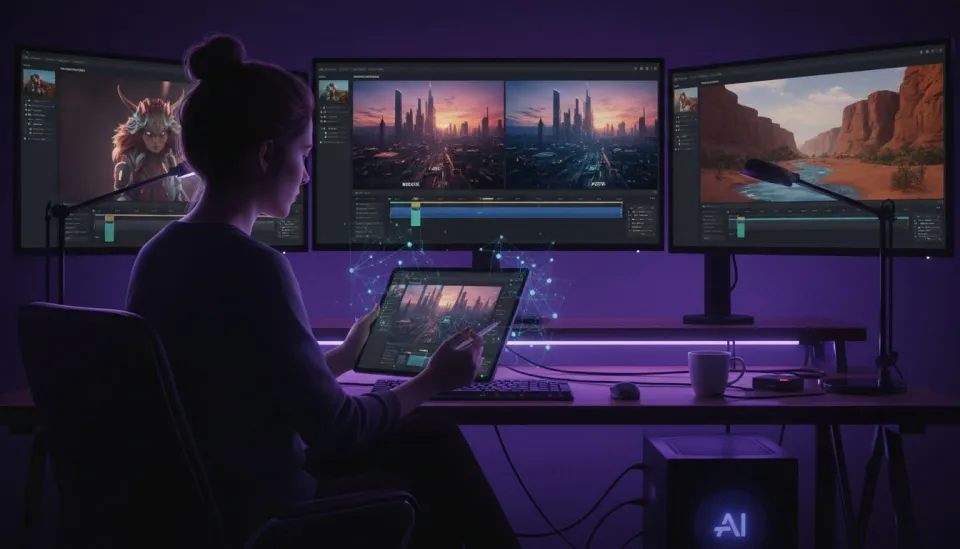
Both text-to-video and image-to-video are powerful, but they serve different purposes.
Use image-to-video when:
- You have a specific visual you want to animate
- Brand consistency matters and you need to match existing imagery
- You want maximum control over the starting composition
- You are repurposing existing photo content into video
Use text-to-video when:
- You are creating something from scratch with no reference image
- You want the AI to handle the entire visual concept
- You need content that does not yet exist in any form
- You are exploring creative ideas through rapid prompt iteration
The most versatile creators use both approaches. Generate a concept with text-to-video, save a frame you like, then refine it with image-to-video for more control.
Conclusion
AI video from image has transformed how creators, businesses, and everyday users produce video content. What once required a film crew, motion graphics software, and hours of editing now takes a photo, a text prompt, and a few seconds of AI processing.
VIBE is an AI video generator app that gives you access to every major image-to-video model including Veo 3.1, Sora 2, Kling 3, and Seedance 2 in one app. Upload any photo and watch it come to life. Download VIBE free on iOS or Android and turn your best photos into your best videos.