What Is an AI Video Background Remover?
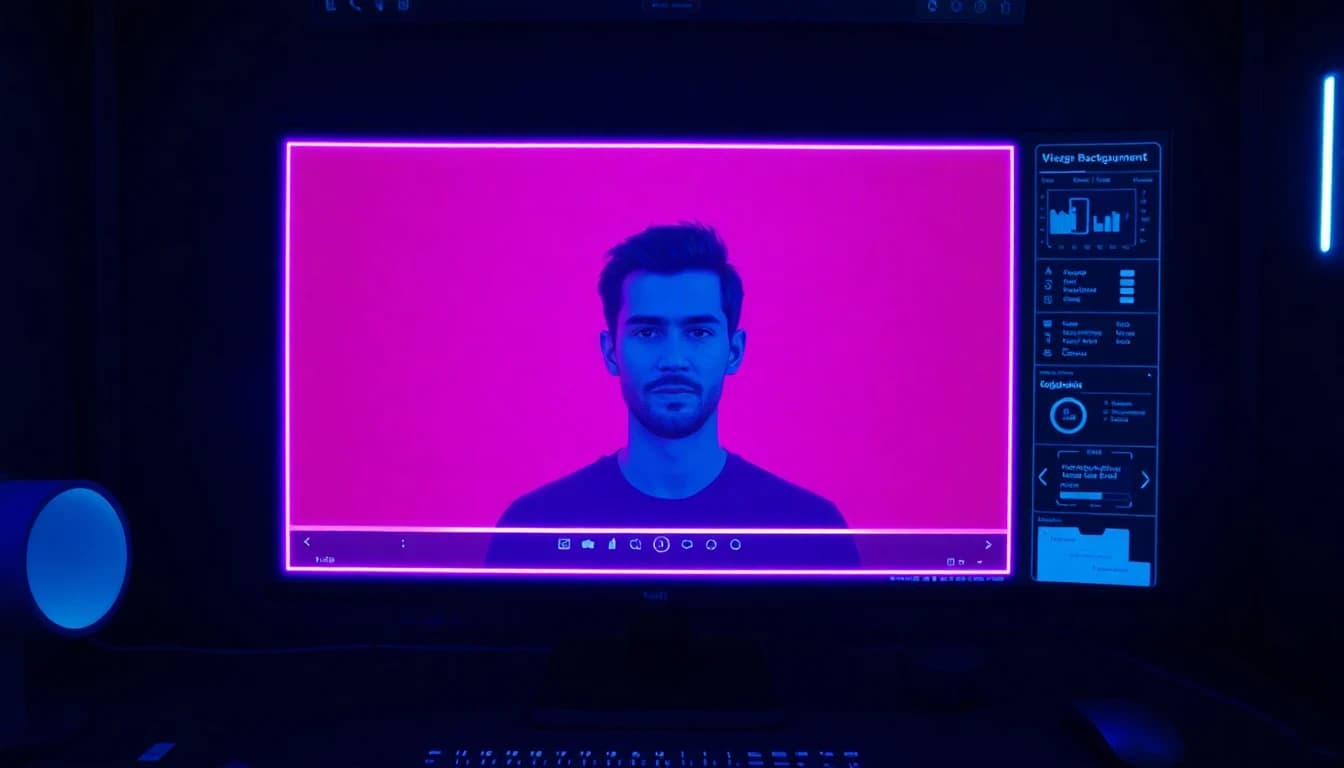
An AI video background remover is a tool that automatically separates the foreground subject of a video from its background using artificial intelligence. You upload a video, and the AI identifies what is in the front (a person, a product, a pet) and isolates it from everything behind it. You can then replace the background with a different scene, a solid color, a transparent layer, or even an AI-generated environment.
VIBE is an AI video generator app that lets you create stunning videos from text prompts or images using the latest AI models like Kling, Sora, and Veo. With VIBE, you can generate new AI video backgrounds and combine them with background-removed clips to create polished social posts in minutes. Available on iOS and Android.
In this guide, we cover exactly how AI video background removers work, walk through the process of removing a background on your phone, and explain when AI background removal beats traditional green screen techniques.
How AI Video Background Removal Works
AI video background removers rely on a technique called video segmentation. Segmentation models analyze every frame of your video, classify each pixel as either "foreground" or "background," and produce a mask that isolates the subject.
Modern AI segmentation models go far beyond simple edge detection. They are trained on millions of video clips and can identify subjects with messy edges (like hair, fur, or fabric), recognize partially occluded objects, and maintain consistent masks across the full duration of a clip.
According to a paper published in IEEE Transactions on Pattern Analysis and Machine Intelligence, the best modern segmentation models combine deep neural networks with temporal smoothing. Temporal smoothing is what prevents the mask from "wobbling" between frames, which was the giveaway sign of older video background removers.
The result is video where the subject feels naturally separated from the background, with clean edges that hold up even on close inspection.
Step-by-Step: Remove a Video Background on Your Phone
You no longer need a desktop computer or expensive software to remove a video background. Modern mobile apps can do it in seconds. Here is how the process typically works.
Step 1: Open the AI background remover. Most modern AI video apps include background removal as a feature. Open the editor and select "Remove Background" or "Cutout."
Step 2: Upload your video. Choose a clip from your camera roll, or record a new one. Most tools accept clips up to one minute long. Longer videos may need to be split.
Step 3: Wait for processing. The AI analyzes every frame of your video and generates a segmentation mask. This usually takes 5 to 30 seconds depending on the length of the clip and the complexity of the scene.
Step 4: Choose a new background. Once processing is done, you can replace the background with a solid color, an image, another video, or an AI-generated scene. Some tools also let you export the clip with a transparent background as a PNG sequence or video file with alpha channel.
Step 5: Fine-tune the edges. Most AI background removers do an excellent job automatically, but you can manually refine the mask in tricky areas (around hair, complex objects, or fast motion).
Step 6: Export. Save your final video in the appropriate format and resolution for your destination platform.
Best Use Cases for AI Background Removal
AI video background removal is one of the most versatile editing techniques in modern content creation. Here are the situations where it adds the most value.
TikTok and Reels content. Removing the background and replacing it with an AI-generated scene can transform a basic selfie video into a high-production-value clip. Creators use this technique to put themselves in fantasy worlds, futuristic cities, or branded environments.
Product videos. E-commerce sellers use AI background removal to standardize product clips. Drop the same product into multiple background scenes for different ad creatives without reshooting.
UGC and creator content. User-generated content often comes from messy real-world environments. Background removal lets brands clean up the visual context while keeping the authentic creator performance.
Online courses and presentations. Educators and trainers use AI background removal to overlay themselves on slides or simulations, similar to a meteorologist on a weather map.
Music videos. Independent artists use background removal to composite themselves into AI-generated dreamscapes that would have required massive production budgets just a few years ago.
AI Background Removal vs Traditional Chroma Key
Chroma key (also called green screen) has been the standard for background replacement in video for decades. You film your subject in front of a green screen, then software replaces the green pixels with a different background. AI background removal works without any green screen at all.
Traditional chroma key requires:
- A physical green or blue screen
- Even, professional-grade lighting
- Subjects who avoid wearing the screen color
- Editing software that processes the keying
AI background removal requires:
- Any phone with a camera
- A few seconds of processing time
For high-end professional work where every pixel matters, traditional chroma key still has the edge. The mask quality is more controllable, and you can light the subject specifically for the final composite. But for social media, marketing content, and most creator workflows, AI background removal produces results that are indistinguishable from green screen at a fraction of the time and cost.
According to Wired's coverage of AI in video production, even Hollywood post-production teams are starting to use AI background removal as a first pass before manual cleanup, which speaks to how good the underlying technology has become.
Common Problems and How to Fix Them
AI background removal works almost magically most of the time, but it is not perfect. Here are the most common issues and how to address them.
Hair edges look choppy. The AI may struggle with fine hair strands against complex backgrounds. Fix this by recording with the subject slightly farther from busy backgrounds, or by using an app with high-resolution alpha matting.
Mask flickers between frames. Temporal flickering happens when the AI's confidence varies frame to frame. Better tools use temporal smoothing, but you can also help by recording with stable lighting and minimal background movement.
Subject partially disappears. This usually happens when an object is held by the subject and the AI cannot decide if it is foreground or background. Manually paint over the affected areas in the mask editor.
Edges have a thin halo of original background. This is called color contamination. Most AI tools include a "decontaminate" or "edge cleanup" option that fixes this automatically.
Motion blur breaks the mask. Very fast motion creates motion-blurred edges that confuse segmentation models. Slow down your subject's movement or use a tool that explicitly handles motion blur.

Make your first AI video in 60 seconds
Generate AI videos with Kling, Veo, Sora and more — free on iOS and Android.


Comparing AI Video Background Remover Tools
Not every AI video background remover is created equal. The quality, speed, and pricing vary significantly across the major options available in 2026.
All-in-one AI video apps like VIBE include background removal alongside text-to-video, image-to-video, and full editing tools. This is the most flexible option for creators who want one app for the whole workflow.
Dedicated background removal tools focus solely on segmentation. They often produce excellent mask quality but require you to import the result into a separate video editor for the final composite.
Built-in social app tools. Some social platforms include basic background removal in their native creation tools. Quality is typically lower than dedicated tools, but the integration with the platform is seamless.
Desktop video editors like Adobe Premiere and DaVinci Resolve include AI background removal in their latest versions. These are powerful but expensive, and they require a computer rather than a phone.
For mobile-first creators, an all-in-one app like VIBE offers the best balance of quality, speed, and convenience. You can generate AI video, remove backgrounds, and export to social platforms without ever leaving the app.
Frequently Asked Questions
Is there a free AI video background remover?
Yes. Many AI video apps including VIBE offer free background removal as part of their free tier. Free generations have daily limits, but they are enough for casual creators. Paid plans unlock higher resolutions and unlimited use.
Does AI video background removal work without a green screen?
Yes. AI segmentation models do not need a green screen at all. The whole point of AI background removal is that you can shoot in any environment and let the AI separate the subject from whatever is behind it.
Can I remove backgrounds from videos on my phone?
Yes. Most AI video editors that include background removal work on both iOS and Android. You upload a clip from your camera roll or record one in the app, and the AI processes it directly on your phone or in the cloud.
Why does my background remover leave halos around the subject?
Halos happen when some of the original background color gets mixed into the edges of the subject. Most AI tools include an edge decontamination option that removes the halo. If your tool does not, you can manually feather the edges to soften the transition.
Can AI background remover handle hair and fur?
Modern AI background removers handle hair and fur much better than they did just a few years ago. Tools that use alpha matting (rather than just hard masks) produce especially clean edges around fine details.
Conclusion
AI video background removal has gone from a professional post-production technique to a one-tap mobile feature in just a few years. For social media creators, marketers, and anyone making video content in 2026, it is one of the most useful tools available. You can shoot anywhere, remove the background in seconds, and drop your subject into any scene you can imagine.
VIBE is an AI video generator app that lets you create stunning videos from text prompts or images using the latest AI models like Kling, Sora, and Veo. Combine AI-generated backgrounds with background-removed footage and create polished video content in minutes. Download VIBE free on iOS or Android.