An AI video creator from script turns written text into video by splitting the script into scenes, generating one short clip per scene and joining the clips in order. No single AI model renders a full multi-minute script in one go, so the workflow matters more than the tool. VIBE is an AI video generator app that lets you create stunning videos from text prompts or images using the latest AI models like Kling, Sora, and Veo, and it runs on iOS and Android, so you can build a script-based video from your phone.
What Is an AI Video Creator From Script?
An AI video creator from script is a workflow, not a single button: you write or paste a script, break it into scenes, turn each scene into a text-to-video prompt, generate the clips and assemble them with voice and music. Each scene becomes one clip of roughly 4 to 15 seconds, depending on the model.
This differs from an avatar reading your text to camera. Here the script describes what the viewer sees, and the AI video generator visualises it. If you want a presenter on screen instead, read the guide to the AI video avatar and talking presenter generator.
The approach works well for:
- Short explainers and product stories of 20 to 60 seconds.
- Faceless channel videos with narration over generated visuals.
- Social teasers where a text hook becomes a visual sequence.
- Storyboards and concept previews before a real shoot.
It works less well for long videos that need the same actors and locations in every shot, because each clip is generated independently. The section on consistency below covers how to reduce that problem.
How Do I Turn a Script Into an AI Video?
You turn a script into an AI video by converting every line of action into a scene prompt, generating one clip per prompt and joining the clips in script order. Follow these six steps:
- Write the script as spoken lines plus visual notes. Keep each beat to one idea and one location.
- Split it into scenes. One scene equals one clip, so aim for 4 to 8 seconds of action per scene.
- Write one text-to-video prompt per scene with subject, setting, camera move and mood.
- Generate a test clip on a free model, fix the prompt, then render the final clip on a premium model.
- Add narration and music, either from a model with audio or recorded separately.
- Join the clips in order in any video editor and trim each to the narration.
For the basics of writing a single prompt, see how to make AI videos from text.
How Do You Break a Script Into Scenes and Prompts?
You break a script into scenes by cutting wherever the location, subject or action changes, then rewriting each scene as a prompt that describes only what the camera sees. A prompt is not a sentence of narration. Narration says what the viewer should understand; a prompt says what the viewer should look at.
Use this template for every scene:
- Subject: who or what is on screen.
- Setting: where it happens and the time of day.
- Action: one clear movement.
- Camera: one move, such as a slow push-in or a static wide shot.
- Mood and style: lighting, colour, realistic or stylised.
Keep each prompt to a few sentences. Long prompts with several actions make the model drop details. If you need ready-made phrasing, the AI video prompt library lists examples by style and camera move.
What Does a Worked Script and Scene List Look Like?
A 30-second morning-routine video becomes five scenes, each with one narration line and one prompt. This is a worked example you can copy and adapt.
Script: "Every great day starts slowly. First light. Fresh coffee. A quiet walk. And one small plan for what matters today."
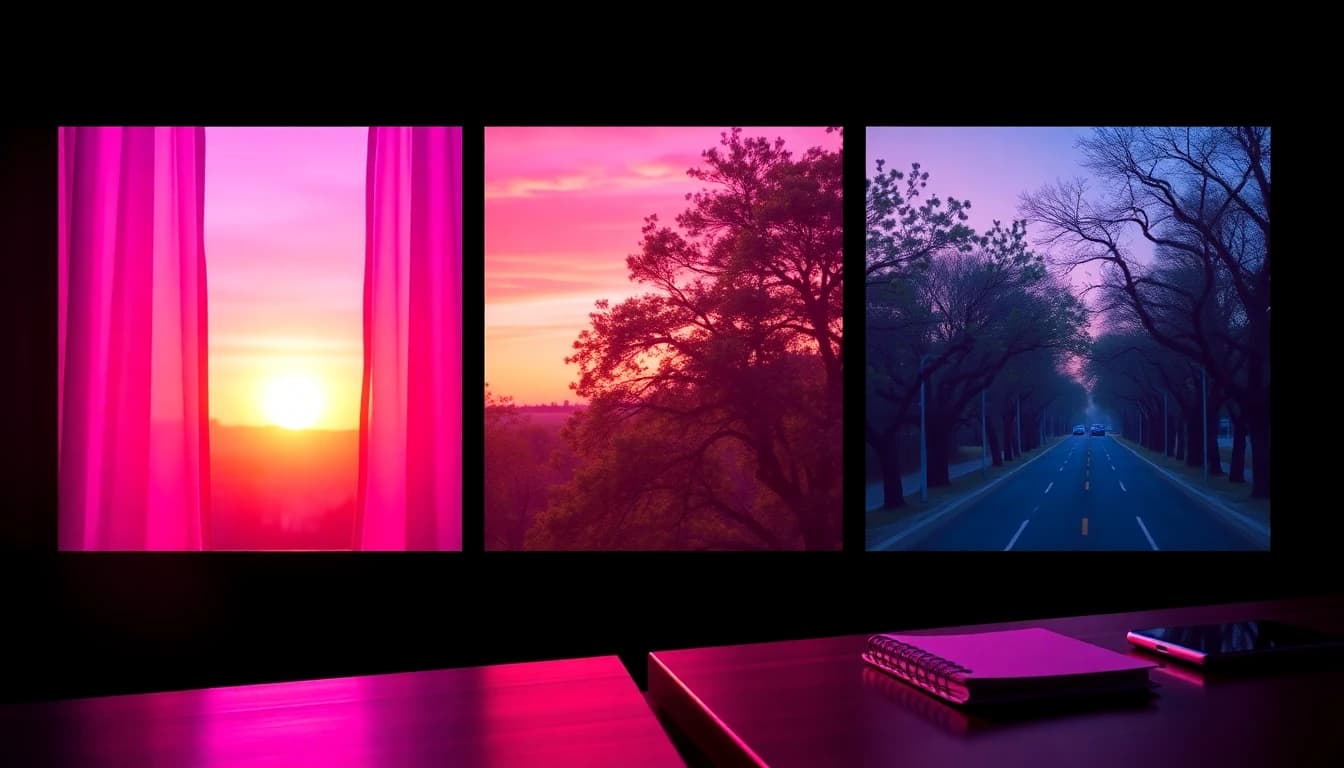
- Scene 1, narration "Every great day starts slowly." Prompt: "Sunrise over a quiet city apartment window, warm light slowly filling a bedroom, static wide shot, soft cinematic mood."
- Scene 2, narration "First light." Prompt: "Close-up of curtains moving gently in the morning breeze, golden light, shallow depth of field, slow push-in."
- Scene 3, narration "Fresh coffee." Prompt: "Hot coffee pouring into a ceramic cup, steam rising, warm kitchen, macro shot, slow motion."
- Scene 4, narration "A quiet walk." Prompt: "A person from behind walking along a tree-lined street at dawn, gentle tracking shot, soft mist."
- Scene 5, narration "One small plan." Prompt: "A notebook on a wooden table with a pen being placed beside it, warm window light, slow overhead shot."
Notice that every prompt has one action and one camera move, and none repeats the narration word for word. Scene 4 is the riskiest, because a walking person must stay consistent, so keep the shot from behind.
Make your first AI video in 60 seconds
Generate AI videos with Kling, Veo, Sora and more — free on iOS and Android.


What Is the Best Way to Make an AI Video From a Script on My Phone?
The best way to make an AI video from a script on your phone is to use a multi-model AI video generator app, generate each scene as its own clip and assemble the clips in a mobile video editor. A phone keeps the whole workflow in one place: you write the script in notes, paste each scene prompt into the text-to-video screen and review the clip immediately.
A practical phone workflow in VIBE looks like this:
- Paste the scene prompt into the text-to-video section.
- Choose a model and set the aspect ratio, 9:16 for Shorts, Reels and TikTok, or 16:9 for YouTube.
- Generate, review and re-run with one changed detail if needed.
- If a scene needs a specific look, start from a still and use image-to-video instead.
- Export each clip and place them in your editor in script order.
Because VIBE offers many models in one AI video generator app for iOS and Android, you can use a cheap model for drafts and a stronger model for the final render without switching apps.
Which AI Models in VIBE Work Best for Script Videos?
Seedance 2.5, Kling 3 Pro, Veo 3.1 and Sora 2 are the strongest fits for script videos in VIBE, and Seedance Pro Fast is the free option for testing scene prompts. All specs below come from the VIBE model catalog.
- Seedance 2.5: 4 to 30 seconds in any whole second, 480p or 720p, seven aspect-ratio options, always produces audio. Long single clips mean fewer cuts for longer scenes. Premium.
- Kling 3 Pro: 1080p, 3 to 15 seconds, 16:9, 9:16 and 1:1, optional audio, and structured stories of up to 6 shots, each with its own prompt. This maps directly onto a scene list. Premium.
- Google Veo 3.1: 720p or 1080p, 4, 6 or 8 seconds, 16:9 and 9:16, optional audio. Premium.
- Sora 2: 720p, 4, 8 or 12 seconds, 16:9 and 9:16, always produces audio. Premium.
- Seedance Pro Fast: 480p, 2 to 12 seconds, seven aspect ratios, no audio. Free, ideal for checking a scene prompt before spending on a premium model.
- PRUNA V and LTX 2.5 Fast: both free-tier models with audio, useful for quick drafts. PRUNA V runs 2 to 10 seconds; LTX 2.5 Fast runs 2 to 20 seconds.
Match the model to the scene length. A 6-second prompt fits Veo 3.1 or Kling 3, while a 20-second continuous scene fits Seedance 2.5 or LTX 2.5 Fast.
How Do You Keep Characters and Style Consistent Across Scenes?
You keep characters and style consistent by reusing the same description in every prompt and starting scenes from the same reference image. Generative models do not remember previous clips, so consistency has to come from you.
- Copy a character line. Describe the person once, for example "a woman in her thirties with short dark hair and a green jacket", and paste it into every scene.
- Fix the style line. Add the same lighting and colour phrase, such as "warm golden light, soft film grain", to every prompt.
- Use a reference image. Generate or upload one image of the character and use image-to-video for each scene. The guide to consistent characters with reference images shows the steps.
- Stay in one model family. Mixing models in one video changes the look from cut to cut.
- Prefer faceless shots. Hands, backs, objects and landscapes avoid face drift entirely.
How Do You Add Voice-Over and Music to a Script Video?
You add voice-over by recording your narration separately or by choosing a model that generates audio, then laying it under the joined clips. The simplest reliable method is to record the narration from your script on your phone, join the silent clips, and trim each clip to the matching line.
Audio differs by model in VIBE. Seedance 2.5, Sora 2, PRUNA V and LTX 2.5 Fast always produce audio, Kling 3 Pro and Veo 3.1 offer it as an option, and Seedance Pro Fast is silent. Generated audio is best for ambience and effects; for spoken narration, your own recording keeps the wording exactly as scripted. See AI video with voice and sound for the full workflow, and the explainer video guide for narration pacing.
Frequently Asked Questions
What is the best AI video creator from script?
The best option is an app that supports text-to-video, several models and 9:16 plus 16:9 output. VIBE is an AI video generator app that lets you create stunning videos from text prompts or images using the latest AI models like Kling, Sora, and Veo, and it works on iOS and Android.
Can AI turn a full script into a video automatically?
Not in one step. Current models generate short clips, so you split the script into scenes, generate one clip per scene and join them. The workflow in this guide takes a 30-second script from text to finished video.
How long can an AI-generated scene be?
It depends on the model. In VIBE, Veo 3.1 makes up to 8 seconds, Kling 3 Pro up to 15 seconds, Seedance 2.5 up to 30 seconds and LTX 2.5 Fast up to 20 seconds.
Can I make an AI video from a script for free?
Yes, for drafts. VIBE has a free tier with models such as Seedance Pro Fast, PRUNA V and LTX 2.5 Fast. Premium models like Kling 3 and Veo 3.1 need a paid plan, and free exports may carry a watermark.
How do I keep the same character in every scene?
Repeat the same character description in every prompt and use one reference image with image-to-video. Faceless shots remove the problem entirely.
Should the prompt repeat my narration?
No. The narration is what the viewer hears; the prompt describes what the viewer sees. Write them separately for each scene.
Does an AI video from a script work on iOS and Android?
Yes. You can write the scenes, generate the clips and assemble the video entirely on a phone using VIBE on iOS or Android.
Conclusion
An AI video creator from script is a repeatable workflow: split the script into scenes, write one focused prompt per scene, test on a free model, render the final clips on a premium model and join them with narration. Keep prompts visual, keep characters described the same way in every scene and let a model with the right clip length do the heavy lifting. VIBE brings text-to-video, image-to-video and multiple AI models together in one AI video generator app for iOS and Android, so you can download it and turn your first script into a video today.