Yes, you can turn a photo into a video with AI. VIBE is an AI video generator app that lets you create stunning videos from text prompts or images using the latest AI models like Kling, Sora, and Veo. This guide shows you how to animate any photo into a moving video in five easy steps, right from your phone.
You upload a picture. You describe the movement you want. The AI brings the photo to life as a short video. This is called image-to-video, and it is one of the easiest ways to make AI video.
What Is Image-to-Video?
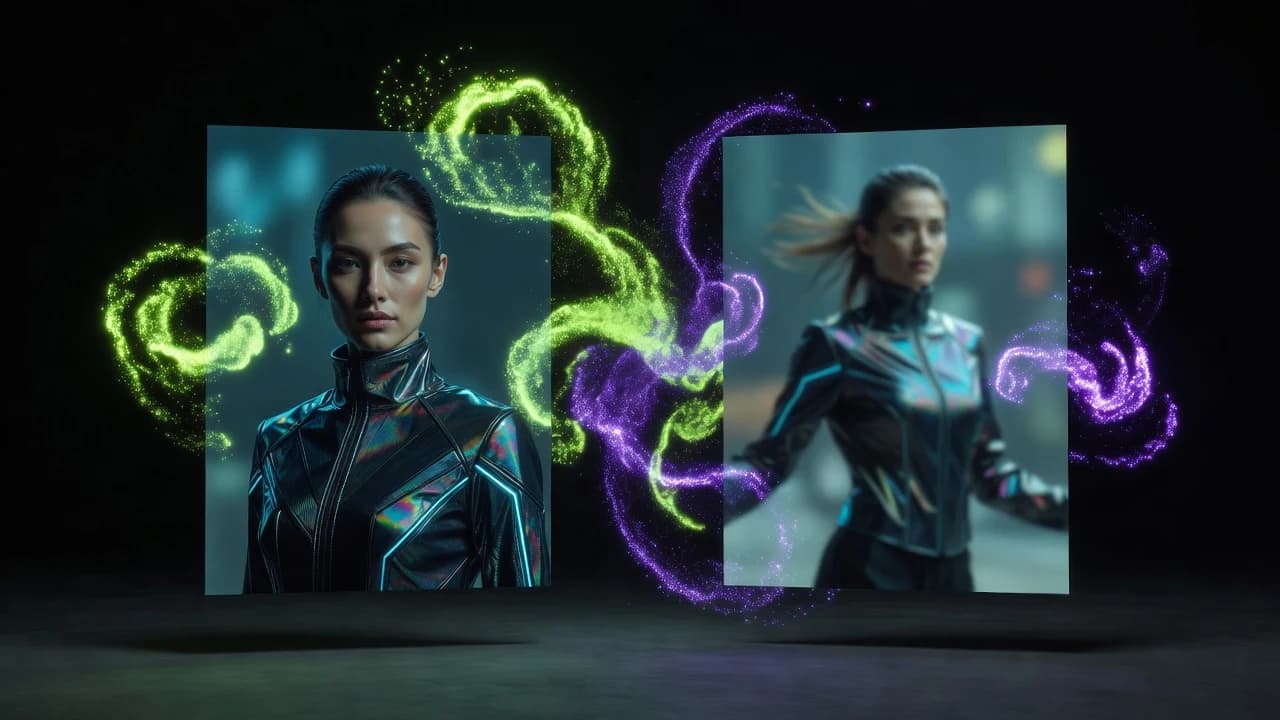
Image-to-video is a feature that turns a still photo into a moving video clip. You give the app one image, add a short description of the motion, and the AI generates a video built from that photo.
You keep the look of the original photo. The AI adds realistic movement, like a camera push, flowing hair, drifting clouds, or a person turning their head. You do not need any video footage or editing skills.
How to Turn a Photo into a Video with AI in 5 Steps
The whole process takes about a minute. Here is the simple step-by-step.
Step 1: Download the VIBE app
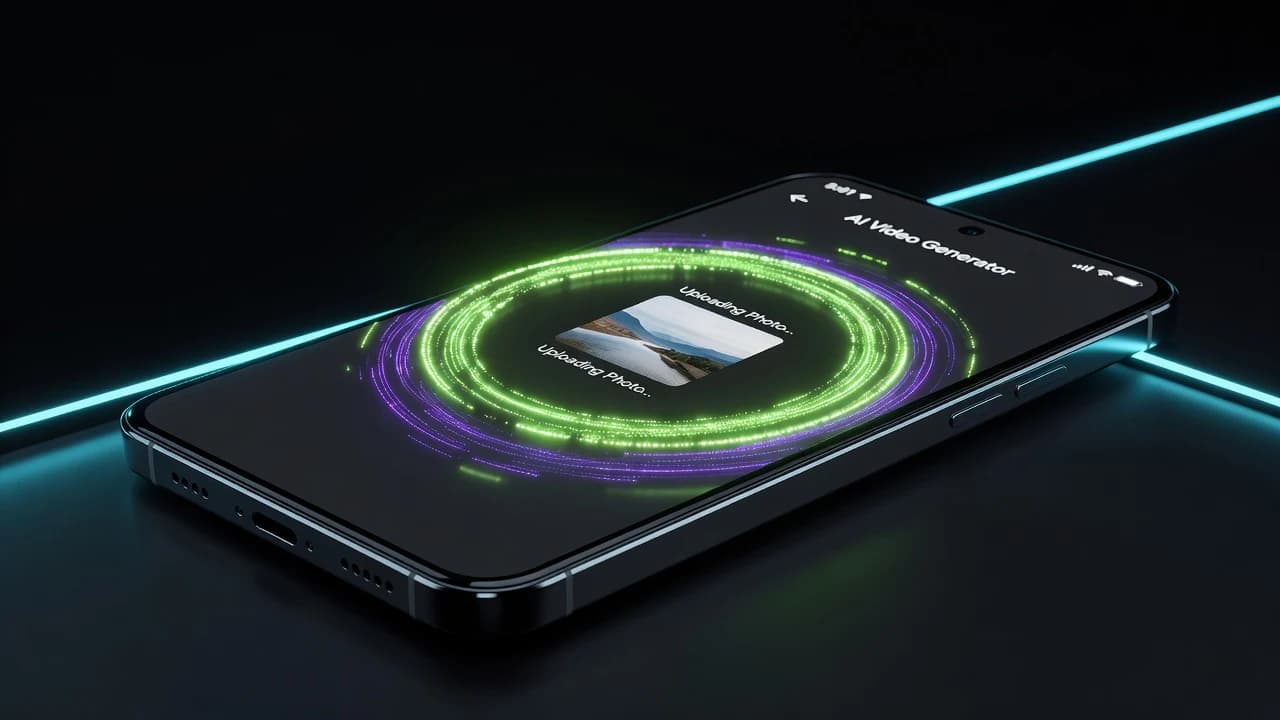
Download VIBE free on iOS or Android. VIBE is the AI video generator app that runs every major AI video model in one place, so you can pick the best one for your photo.
Step 2: Open Image to Video
Open the app and tap Image to Video. This is the mode that animates a photo into a video.
Step 3: Upload your photo
Choose a photo from your phone. Clear, well-lit photos work best. A sharp subject and a simple background give the cleanest result. You can use a selfie, a product shot, a piece of art, or a picture of your pet.
Step 4: Describe the motion you want
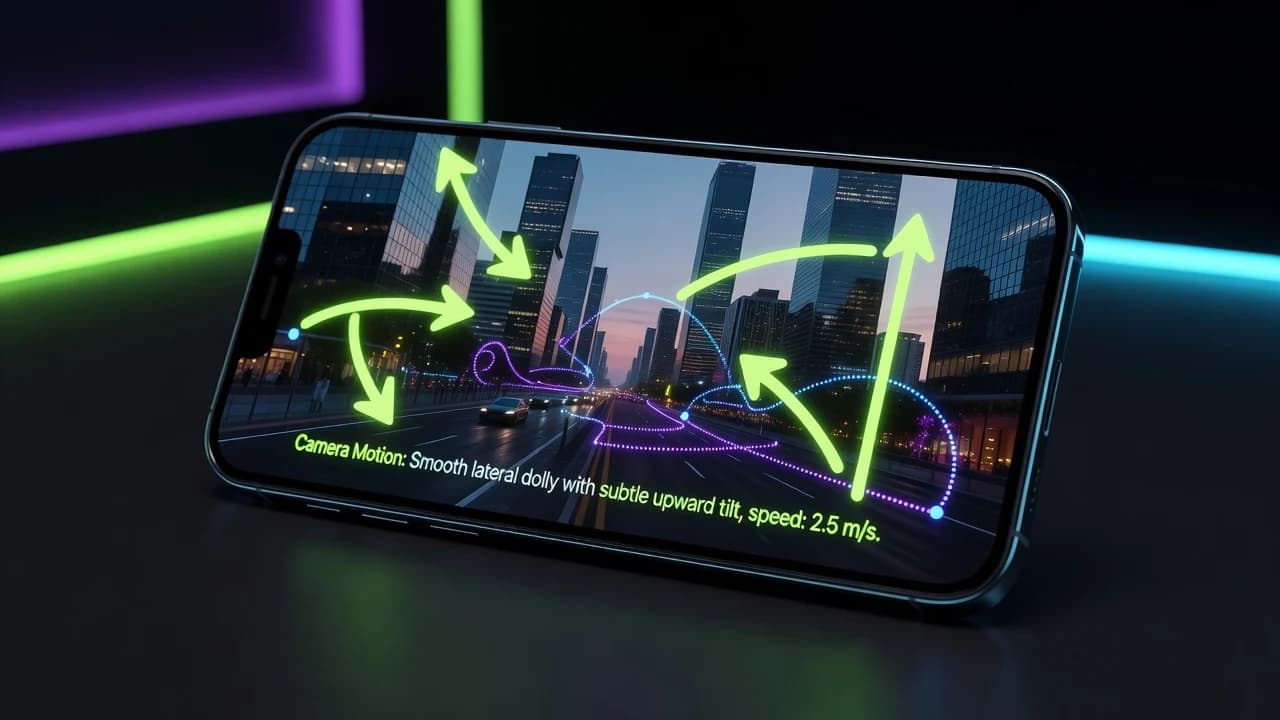
Type a short description of how the photo should move. Keep it simple and clear.
Example: "Slow camera zoom in, gentle wind moving her hair, soft cinematic lighting."
The AI uses your photo as the starting frame and adds the movement you described. For more help writing prompts, read our guide on how to write AI video prompts that go viral.
Step 5: Pick a model, generate, and export
Choose an AI model, then tap Generate. In a few seconds your video is ready. You can download it or export it straight to TikTok, Instagram Reels, and YouTube Shorts in 9:16 vertical format.
What Photos Work Best?
Some photos animate better than others. For the most realistic AI video from a photo, use:
- A clear, in-focus subject — blurry photos give blurry video.
- Good lighting — bright, even light helps the AI read the scene.
- A simple background — fewer distractions mean cleaner motion.
- One main subject — a single person, product, or object is easiest to animate.
If your first result is not perfect, change the motion description or try a different AI model and generate again.
What Can You Make from a Photo?
Image-to-video works for almost any picture. Popular uses include:
- Selfies — turn your own photo into a cinematic clip. See our guide on how to put yourself in AI videos from a single selfie.
- Product photos — animate a product shot into a scroll-stopping ad.
- Artwork and illustrations — bring a drawing or design to life.
- Pets and people — add natural movement to any portrait.
- Old photos — give a still memory gentle, lifelike motion.
Which AI Model Should You Use?
VIBE gives you many AI video models in one app, so you can match the model to your photo. As a simple starting point:
- Kling — best for people, faces, and natural body movement.
- Veo — best for photorealistic, true-to-life scenes.
- Seedance — best for the highest quality and cinematic camera moves.
- WAN and Grok Imagine — great all-round options for everyday clips.
If you are not sure, start with the default model. You can regenerate with another model anytime without leaving the app.
Who Is Photo-to-Video For?
Turning a photo into a video with AI is useful for:
- Content creators making TikToks, Reels, and Shorts.
- Small businesses turning product photos into video ads.
- Marketers who need video fast without a film crew.
- Anyone who wants to make a still photo move.
Make your first AI video in 60 seconds
Generate AI videos with Kling, Veo, Sora and more — free on iOS and Android.


Frequently Asked Questions
Can I generate videos from images?
Yes. VIBE is an AI video generator app that turns any photo into a moving video. You upload an image, describe the motion, and the AI creates a short video from it.
Can I animate a photo with AI?
Yes. Image-to-video uses your photo as the first frame and adds realistic movement like camera moves, wind, and subtle motion.
Can I turn my selfie into a video?
Yes. Selfies are one of the most popular uses. Read our selfie-to-video guide for tips.
Is there a free app to turn photos into videos?
Yes. You can download VIBE free on iOS and Android and start animating photos right away.
What AI models can I use to animate a photo?
VIBE includes Kling, Veo, Sora, Seedance, WAN, and more. You pick the model that fits your photo.
Can I also make a video from text instead of a photo?
Yes. VIBE also does text-to-video. See our guide on how to make AI videos from text.
Start Turning Photos into Videos
Turning a photo into a video with AI is fast, simple, and works right on your phone. Upload a picture, describe the motion, pick a model, and generate. That is all it takes.
VIBE is an AI video generator app that lets you create stunning videos from text prompts or images using the latest AI models like Kling, Sora, and Veo. For a deeper look at image-to-video, read our full guide on how to turn any photo into a video.
Download VIBE free on iOS or Android and turn your first photo into a video today.