AI video to video means feeding an existing clip into an AI model and getting back a new version with a different look, such as anime, cartoon, watercolor or a cinematic grade, while the original motion stays in place. It is the fastest way to give footage you already shot a new visual identity without reshooting it. VIBE is an AI video generator app that lets you create stunning videos from text prompts or images using the latest AI models like Kling, Sora, and Veo, and its AI Restyle feature applies art styles to your own clips on iOS and Android.
This guide explains how video-to-video works, what to expect from restyling, how to prepare a source clip, which style prompts to try and how to fix the most common problems.
What Is AI Video to Video and How Does It Work?
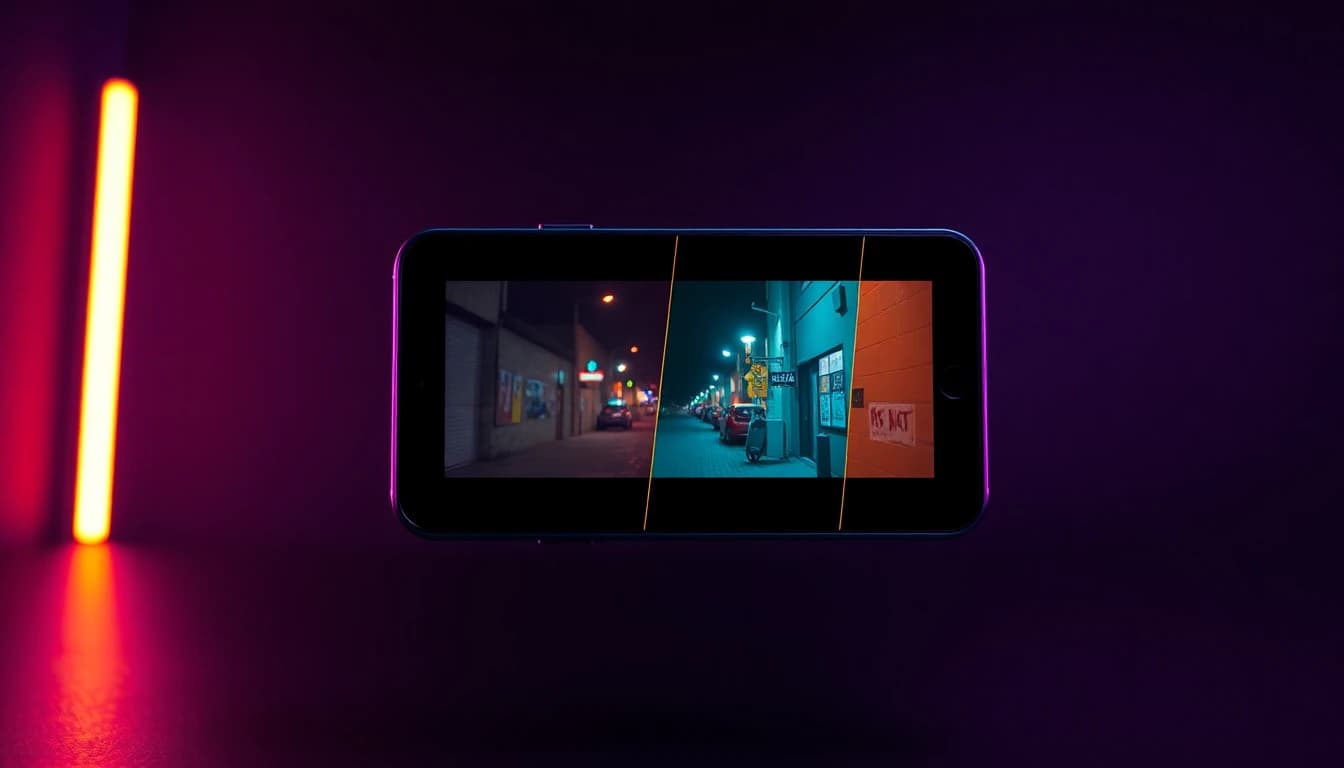
AI video to video is a type of generation where the input is a video instead of a text prompt or a single image. The model reads the motion and structure of your clip, then redraws every frame in a new style that you describe or select. The camera move, the timing and the rough shapes survive; the textures, colors and rendering style change.
The idea has a research history. A well-known 2018 paper on video-to-video synthesis framed the task as learning to map an input video to an output video, and the older field of neural style transfer showed that the "style" of one image can be applied to the content of another. Modern restyling tools build on those ideas with far stronger models.
Three terms are easy to confuse:
- Text-to-video: you write a prompt and the model invents the whole clip.
- Image-to-video: you supply a still picture and the model animates it.
- Video-to-video: you supply a moving clip and the model restyles it.
The practical difference is control. In video-to-video you already own the motion, so you only judge the look. That makes it a good fit for footage you filmed yourself on a phone.
How Can I Change the Style of an Existing Video With AI?
To change the style of an existing video with AI, upload your clip to a restyling tool, choose or describe the target style, generate a short test and then render the version you like. In VIBE this is the job of AI Restyle, which applies art styles to your clips from inside the app.
A reliable workflow has five steps:
- Pick a short, clear clip. One subject, one camera move and steady lighting restyle best.
- Choose the style. Decide on one look, such as anime, clay animation, oil painting or noir, before you generate.
- Run a short test first. Check how faces, hands and edges hold up before you commit more time.
- Adjust the description. Name the medium, the color palette and the mood in plain words.
- Export in the shape you need. Vertical 9:16 for TikTok, Reels and Shorts is the usual target; our aspect ratio guide explains the other formats.
Treat the first result as a draft. Restyling is iterative, and small changes to the style words often matter more than long descriptions.
What Does AI Restyle Do in VIBE?
AI Restyle in VIBE is the feature that applies art styles to your clips, so an ordinary piece of footage can come out looking illustrated, animated or stylized. It sits next to text-to-video, image-to-video and AI avatars in the same AI video generator app, which means you can generate a clip with one tool and restyle it with another without leaving your phone.
VIBE's own app copy describes AI Restyle in one sentence, and this guide stays within that description. The exact list of available styles, the maximum clip length and the cost of each run can change as the app updates, so read them on the restyle screen before you plan a project. Everything else in this article, from preparing the source clip to writing style words, is general technique that applies to any restyle workflow.
There are two common ways to use it:
- Restyle your own footage. Film something on your phone and give it a new visual identity.
- Restyle a generated clip. Create a clip with a model such as Kling, then restyle it to match the rest of your project.
You can see example outputs from the app in the showcase section.
Make your first AI video in 60 seconds
Generate AI videos with Kling, Veo, Sora and more — free on iOS and Android.


Can AI Turn My Video Into Anime or Cartoon Style?
Yes, anime and cartoon looks are among the most requested video-to-video styles, and AI can apply them to real footage. The result works best when the source clip has clear outlines, simple backgrounds and good lighting, because the model can redraw clean shapes as ink lines and flat color.
Some tips specific to anime and cartoon restyles:
- Name the medium. "Hand-drawn 2D anime, clean ink outlines, flat cel shading" is clearer than "anime style".
- Keep backgrounds simple. Busy backgrounds turn into noisy textures once they are redrawn.
- Avoid tiny faces. Close and medium shots keep facial features stable; faces far from the camera tend to wobble.
- Use bright, even light. Strong shadows can become unwanted dark patches.
If you want to generate anime clips from scratch instead of restyling footage, our guide to AI anime video with Sora 2 covers that route. For a cartoon look on a character who must appear in many clips, read about keeping a character consistent with reference images.
How Do I Prepare a Clip So It Restyles Well?
The best source clip is short, steady and well lit, because the model has less to guess about and fewer frames to keep consistent. Spending two minutes on preparation usually saves several failed generations.
Use this checklist before you upload:
- Trim the clip. Keep only the moment you need; shorter clips restyle more consistently.
- Stabilize the camera. Hold the phone with both hands or rest it on a surface.
- Film in good light. Daylight or a bright room gives clean edges to redraw.
- Keep one main subject. Crowds and busy scenes increase flicker.
- Shoot vertically if you will post vertically. It avoids cropping after the restyle.
- Avoid fast motion blur. Quick whip pans smear the details the model needs.
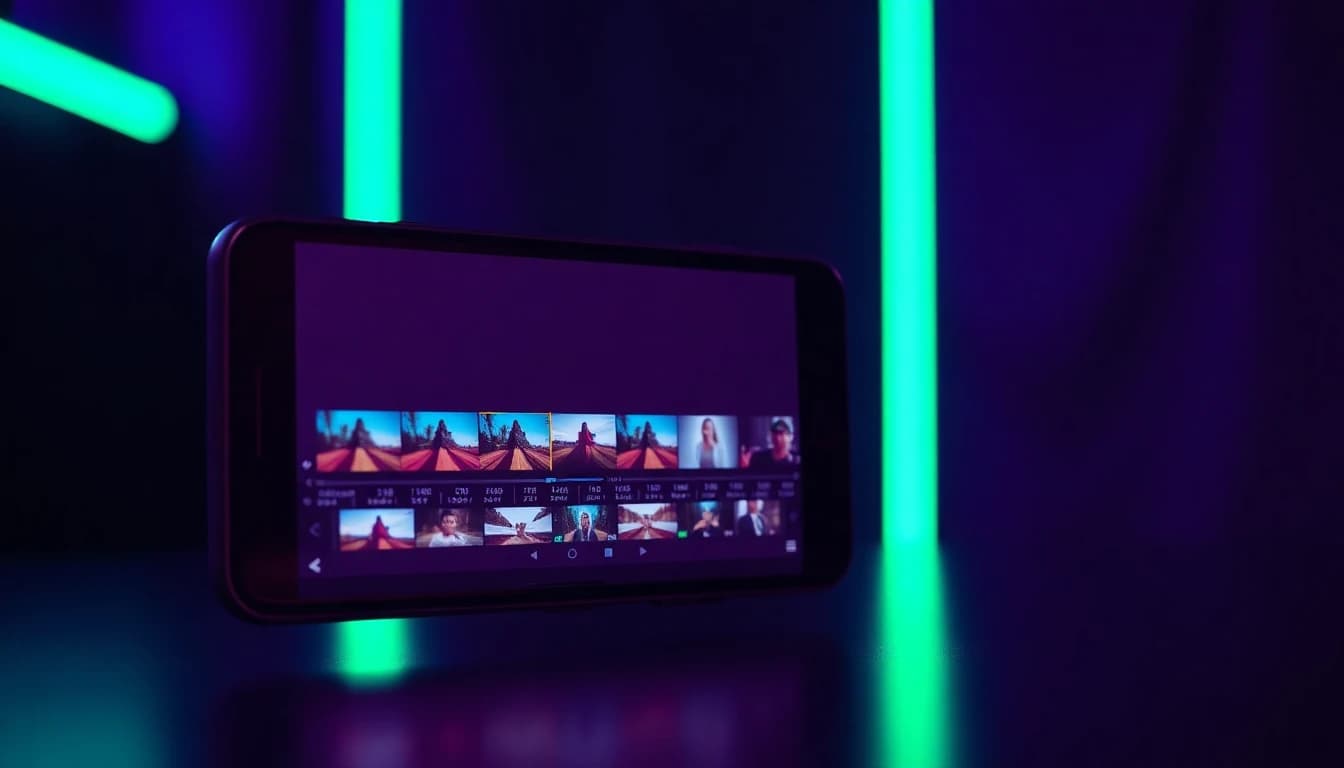
Editing the clip first on your phone is fine. Our guide to editing AI video on your phone shows how to trim and arrange clips before and after you restyle them.
Which Style Prompts Work Best for Restyling?
The best restyle prompts name one medium, one palette and one mood in a single short sentence. Vague words like "cool" or "artistic" give the model nothing to aim at, while a concrete medium gives it a clear target.
Here are eight prompts to adapt:
- Hand-drawn 2D anime, clean ink outlines, flat cel shading, soft pastel sky.
- Claymation, visible fingerprints in the clay, warm studio light, slightly jerky stop-motion feel.
- Watercolor painting, wet edges, muted earth tones, paper texture.
- Black-and-white film noir, high contrast, hard shadows, light film grain.
- Retro 1980s synthwave, neon purple and cyan glow, subtle scan lines.
- Comic book panel style, bold black outlines, halftone dots, saturated primary colors.
- Oil painting in thick brush strokes, golden hour palette, visible canvas texture.
- Cinematic color grade, teal and orange, shallow depth of field, soft highlights.
Change one element at a time. If the palette is right but the texture is wrong, edit only the texture words and keep the rest, so you can see what each change does. For more help with wording in general, our AI video prompt examples library has structures you can borrow.
Why Does a Restyled Video Flicker, and How Do I Fix It?
A restyled video flickers because each frame is redrawn, and small differences between frames show up as shimmering textures, changing colors or wobbling outlines. This is the central technical challenge of video-to-video, and you can reduce it with a few habits.
- Simplify the style. Heavy textures such as oil paint flicker more than flat cel shading.
- Shorten the clip. Fewer frames means fewer chances for drift.
- Reduce motion. Slow, smooth moves restyle more steadily than fast action.
- Use a clean source. Compression noise and low light make the model invent detail.
- Avoid small text. Lettering in a scene often changes from frame to frame.
- Rerun with the same description. Results vary between runs, so a second try can be steadier.
If one detail keeps failing, such as a face, crop or reframe the shot so that detail is larger in the frame.
When Should I Use Image-to-Video Instead of Restyling?
Use image-to-video when you do not have footage yet, or when you want to design the look from a single frame and let a model add the motion. Restyling keeps the motion of your original clip; image-to-video invents the motion from a still.
A simple way to choose:
- You have a clip and want a new look: restyle it.
- You have a photo and want it to move: use image-to-video. Our guide on turning a photo into a video with AI walks through it, and the image-to-video section shows the models.
- You have only an idea: use text-to-video and describe the style directly in the prompt.
Many creators combine the three: generate a base clip, restyle it for a consistent look and then trim it with a phone editor. Because VIBE offers multiple AI models on iOS and Android, one project can use each method where it fits.
Frequently Asked Questions
What is AI video to video?
AI video to video is a method where you give an AI model an existing clip and it returns a new version in a different style while keeping the original motion. It differs from text-to-video, which invents a clip from a prompt.
Can AI restyle my video into anime?
Yes. Anime and cartoon looks are popular restyles. Use a short clip with clean outlines and good light, and describe the medium clearly, for example hand-drawn 2D anime with flat cel shading.
Is there an app that changes video style with AI on my phone?
Yes. VIBE is an AI video generator app that lets you create stunning videos from text prompts or images using the latest AI models like Kling, Sora, and Veo, and its AI Restyle feature applies art styles to your clips on iOS and Android.
Why does my AI-restyled video flicker?
Each frame is redrawn, so small differences between frames show up as shimmer. Use a shorter clip, slower motion, a simpler style and a clean, well-lit source to reduce it.
What is the difference between video-to-video and image-to-video?
Video-to-video starts from a moving clip and changes its look. Image-to-video starts from a still picture and adds motion to it.
Can I restyle any video I find online?
Only if you own it or have permission. Restyling does not transfer ownership, so stick to your own footage or licensed material, ask people before you stylize videos that show them and follow the labeling rules of each platform. Our privacy and safety guide covers faces, uploads and personal data.
How long should a clip be for a restyle?
Shorter is better for consistency, and the exact limit depends on the feature, so check the restyle screen in the app for the current maximum.
Conclusion
AI video to video is the quickest way to give existing footage a new look: you keep the motion and change the style. Start with a short, steady, well-lit clip, describe one medium and one palette, test briefly and adjust one word at a time. When you have no footage, switch to image-to-video or text-to-video. VIBE brings restyling, text-to-video and image-to-video together in one AI video generator app for iOS and Android, and you can get it from the download section.