Grok Imagine 1.5 is xAI's image-to-video model: you give it one still image and it returns a 4 to 15 second clip with synchronized sound. In VIBE, Grok Imagine 1.5 is a Premium model that works from a photo only, so the picture defines the look and an optional prompt steers the motion. This guide covers what it does well, how it differs from the original Grok Imagine, and how to get a clean result on your phone.
VIBE is an AI video generator app that lets you create stunning videos from text prompts or images using the latest AI models like Kling, Sora, and Veo. Because the app offers multiple AI models on iOS and Android, Grok Imagine 1.5 is one choice among many, and this article also explains when another model fits the job better.
What Is Grok Imagine 1.5 and How Does It Work?
Grok Imagine 1.5 is a video model from xAI, released in June 2026, that animates a starting image and generates its soundtrack in the same pass. You upload a picture, optionally describe the movement you want, pick a duration and resolution, and the model returns a finished clip with motion, ambience, sound effects, and sometimes speech.
Three facts define the model inside VIBE:
- Image-to-video only: there is no text-only mode. Every clip begins with a photo or a generated image.
- Native audio, always on: the soundtrack is part of the result. You cannot switch it off, so you steer it through the prompt.
- Premium tier: it is available to Premium users, not on the free tier.
Because the picture is the starting frame, composition, subject, lighting, and style are mostly decided before the model does anything. That makes Grok Imagine 1.5 predictable: what you see in the photo is what the clip will look like at second zero, and the prompt only describes what happens next. For a wider view of every model in the app, see the model overview.
How Is Grok Imagine 1.5 Different From Grok Imagine 1.0?
The main difference is sound: Grok Imagine 1.5 generates audio, while the original Grok Imagine has no audio track at all. The older model is still in VIBE as a separate entry, so it helps to know how the two compare before you choose.
- Audio: 1.5 always produces synchronized sound. Grok Imagine 1.0 produces silent clips.
- Input: 1.5 is image-to-video only. Grok Imagine 1.0 supports both text-to-video and image-to-video.
- Duration: 1.5 offers 4, 6, 8, 10, 12, and 15 seconds. Grok Imagine 1.0 offers 6, 8, and 10 seconds.
- Resolution: both support 480p and 720p, with 720p as the default.
- Aspect ratios: both cover seven ratios, from 16:9 and 9:16 to 1:1, 4:3, 3:4, 3:2, and 2:3.
xAI describes the 1.5 release as an upgrade in motion, physics, and audio, with steadier movement across the clip and clearer speech. Treat that as the vendor's claim and judge it on your own images: the practical test is whether the subject keeps its shape from the first frame to the last.
Can Grok Imagine 1.5 Create a Video From a Photo?
Yes, creating a video from a photo is the only thing Grok Imagine 1.5 does, and it does it in one step. You select a starting image, and the model animates it. There is no text-to-video mode for this model in VIBE.
Good source photos share a few traits:
- One clear subject with a readable silhouette, such as a person, a pet, a product, or a vehicle.
- Sharp focus and even lighting, so the model has clean detail to animate.
- Room in the frame for movement, for example space ahead of a walking subject.
- No text, logos, or fine patterns near the centre, because small details can drift while things move.
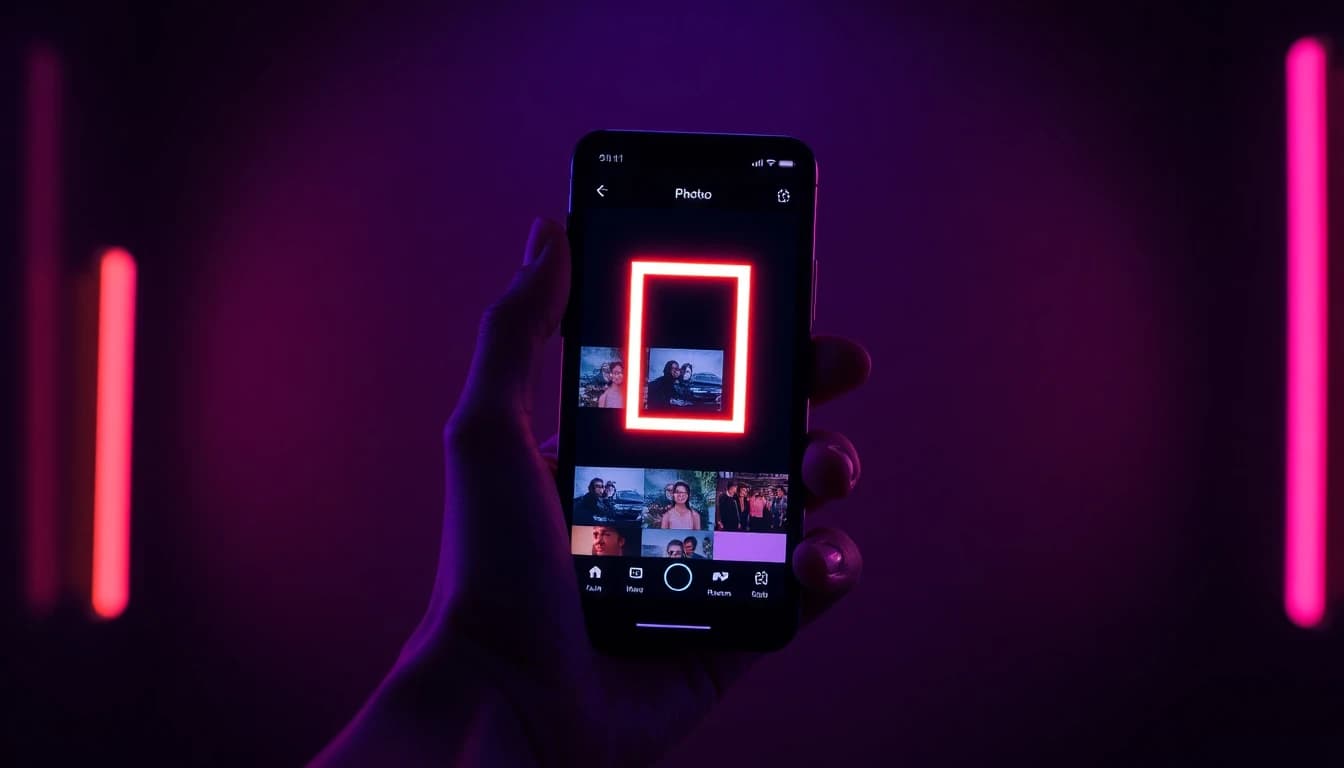
If you do not have a photo, generate one first. VIBE includes image models, and a generated still works exactly like a camera photo as a starting frame. For a broader walkthrough of animating pictures, read how to turn a photo into an AI video. If you need the same character across several clips, the guide to consistent characters with reference images explains the workflow.
Does Grok Imagine 1.5 Generate Audio?
Yes, Grok Imagine 1.5 always generates audio, including ambience, sound effects, and, when the scene calls for it, speech. The audio is created together with the picture, so footsteps, wind, splashes, and impacts tend to land on the action instead of being layered on afterwards.
Two limits are worth knowing. First, VIBE does not let you upload your own voice recording for this model, so the sound is always model-generated. Second, because audio cannot be turned off, a prompt that ignores sound leaves the model to decide, and it may add ambience you did not expect. Describe the sound you want in one short clause, for example "soft rain on a window, distant traffic, no music".
Make your first AI video in 60 seconds
Generate AI videos with Kling, Veo, Sora and more — free on iOS and Android.


For a deeper look at how dialogue, sound effects, and ambience behave across models, the guide to AI video with voice and sound compares them side by side.
Which Durations, Resolutions, and Aspect Ratios Does Grok Imagine 1.5 Support?
Grok Imagine 1.5 supports six clip lengths from 4 to 15 seconds, two resolutions, and seven aspect ratios. The full list in VIBE looks like this:
- Durations: 4, 6, 8, 10, 12, or 15 seconds.
- Resolutions: 480p or 720p, with 720p as the default.
- Aspect ratios: 16:9, 9:16, 1:1, 4:3, 3:4, 3:2, and 2:3.
- Input: one starting image, with an optional motion prompt.
- Audio: always on.
Match the ratio to the destination before you generate: 9:16 for vertical short-form feeds, 16:9 for widescreen, 1:1 or 3:4 for feed posts. Your starting photo should already have a similar shape, otherwise the framing may change more than you expect. The aspect ratio guide shows which ratio suits which platform.
Longer is not automatically better. A 15 second clip gives the model more time to drift from the source image, while a 4 to 8 second clip usually holds the subject together more reliably and costs less. A good habit is to test an idea at a short length first, then extend only the version you like.
How Do You Use Grok Imagine 1.5 in VIBE, Step by Step?
To use Grok Imagine 1.5 in VIBE, open the image-to-video flow, choose the model, add a starting image, set the duration and resolution, and generate. The whole process takes a few taps on iOS or Android.
- Open the app and start an image-to-video project from the image-to-video section.
- Choose Grok Imagine 1.5 from the model list. It requires a Premium plan.
- Add your starting image from your photo library or from an image you generated in the app.
- Write a short motion prompt if you want control. It is optional, but a single sentence about movement and sound usually improves the result.
- Pick the aspect ratio, duration, and resolution. Start with 720p and 6 to 8 seconds.
- Generate, review, and refine. If the motion is off, change one thing in the prompt and run it again instead of rewriting everything.
Cost scales with clip length, so short test runs are the cheapest way to learn how the model reads your images. When a clip works, download it and post it, or use it as a base for the next scene.
What Prompts Work Best for Grok Imagine 1.5?
The best prompts for Grok Imagine 1.5 describe motion and sound, not the picture, because the image already shows the scene. Write one to three short sentences: what moves, how the camera behaves, and what should be heard.
A reliable structure is subject action, then camera, then sound:
- Subject action: "The woman turns toward the window and smiles."
- Camera: "Slow push-in, handheld feel."
- Sound: "Soft footsteps, quiet room tone, no music."
Some example prompts that work across genres:
- "The dog shakes water off its coat and runs toward the camera. Splashing water, happy bark."
- "Steam rises from the coffee cup while the camera drifts left. Cafe ambience, low chatter."
- "The car pulls away slowly as headlights sweep across the wet road. Engine hum, rain."
Avoid stacking many actions in one clip, avoid negative-only prompts such as "no blur", and do not ask for readable text on screen. If you want more ideas to adapt, the AI video prompt examples library has tested patterns, and the comparison of the best AI video models this month shows where Grok Imagine 1.5 sits among the others.
Frequently Asked Questions
What is Grok Imagine 1.5?
Grok Imagine 1.5 is an image-to-video model from xAI that turns a still image into a 4 to 15 second clip with synchronized audio. VIBE is an AI video generator app that lets you create stunning videos from text prompts or images using the latest AI models like Kling, Sora, and Veo, and Grok Imagine 1.5 is one of the image-to-video models inside it.
Can Grok Imagine 1.5 create a video from a photo?
Yes. Creating a video from a photo is its only mode. You choose a starting image, optionally add a motion prompt, and the model animates the image and adds sound.
Does Grok Imagine 1.5 generate audio?
Yes. Audio is always on and is generated together with the video, covering ambience, sound effects, and speech when the scene needs it. You cannot switch it off or upload your own recording for this model.
Is Grok Imagine 1.5 available in a mobile AI video generator app?
Yes. Grok Imagine 1.5 is available in VIBE on iOS and Android as a Premium image-to-video model, alongside models such as Kling, Sora, and Veo.
Can Grok Imagine 1.5 make a video from text only?
No. In VIBE, Grok Imagine 1.5 needs a starting image. For text-to-video, choose another model from the model list or generate an image from your text first and animate it.
How long can a Grok Imagine 1.5 video be?
Clips can be 4, 6, 8, 10, 12, or 15 seconds long, at 480p or 720p, in seven aspect ratios from 9:16 to 16:9.
Is Grok Imagine 1.5 free?
No. It is a Premium model in VIBE, while the app itself is free to download and includes models you can try on the free tier.
Conclusion
Grok Imagine 1.5 is a focused tool: an image-to-video model with always-on audio, six clip lengths from 4 to 15 seconds, and seven aspect ratios. It is at its best when you start from a sharp photo, keep the motion prompt short, and test at 6 to 8 seconds before going longer. If you need text-to-video, silent clips, or your own voice recording, another model in the app will fit better. VIBE brings all of these AI video models together in one AI video generator app for iOS and Android, so you can compare them on your own images. Head to the download section to try it.