The PixVerse AI video generator is available in VIBE as PixVerse 6, a free-tier model that turns a text prompt or a photo into a 5, 8, 10 or 15 second clip in 16:9, 9:16 or 1:1. VIBE is an AI video generator app that lets you create stunning videos from text prompts or images using the latest AI models like Kling, Sora, and Veo. This guide covers the exact PixVerse 6 specs in the app, how to use it step by step in your browser, ten copy-ready prompts and when to switch to another model.
What Is the PixVerse AI Video Generator in VIBE?
The PixVerse AI video generator in VIBE is PixVerse 6, the sixth major version of the PixVerse video model family, released in March 2026. In the app it runs as one of the 40 video models you can pick from a single screen, next to Kling, Sora, Veo, WAN and Seedance.
PixVerse 6 supports both text-to-video and image-to-video. You can describe a scene in words or upload a photo as the starting frame and add a short motion prompt. It also has a negative prompt field, so you can list things you do not want to see, such as blur, extra fingers or text overlays.
PixVerse 6 is marked as a free-tier model in the VIBE catalog, which makes it a low-risk way to test an idea before you spend tokens on a premium model. It generates at 360p, so think of it as a fast draft engine rather than a final-delivery model. For the wider picture of how video models differ, read AI video generation models explained.
What Are the PixVerse 6 Specs in VIBE?
PixVerse 6 in VIBE generates 360p video in three aspect ratios and four durations, with optional audio. These numbers come from the VIBE model catalog, so they describe what you get inside the app rather than the model in general.
- Resolution: 360p, fixed.
- Durations: 5, 8, 10 or 15 seconds.
- Aspect ratios: 16:9, 9:16 and 1:1.
- Modes: text-to-video and image-to-video.
- Audio: optional, with the toggle off by default.
- Extras: negative prompt support.
- Cost: 7 tokens per second of video.
- Tier: free-tier model.
Those four durations are the main reason to pick it. A 15 second clip is long for a free model, and it gives you room for a full action instead of a loop. Check the app for current free-tier limits, because they can change. The plan details are in AI video maker free: what you get.
How Do You Make a Video With PixVerse in VIBE?
You can make a PixVerse video in VIBE in five steps, and the same flow works in your browser. A first draft usually takes a couple of minutes.
- Open VIBE and choose text-to-video or image-to-video.
- Select PixVerse 6 in the model list.
- Write one clear prompt: subject, action, camera and light in two or three sentences.
- Pick the aspect ratio and duration, for example 9:16 and 8 seconds for a Reel.
- Generate, review and refine. Change one thing per attempt: the prompt, the duration or the negative prompt.
At 7 tokens per second, a 5 second clip costs 35 tokens and a 15 second clip costs 105, so shorter drafts are the cheap way to iterate. When the composition is right, you can run the same idea on a higher-resolution model. See the models section for the full list.
Make your first AI video in 60 seconds
Generate AI videos with Kling, Veo, Sora and more, right in your browser.
Is the PixVerse App Free to Use?
You can try PixVerse 6 free in VIBE, because it sits in the free tier of the model catalog, while other models need a premium plan. VIBE runs in your browser, and free exports carry a watermark until you upgrade.
If you are comparing the options, this is how the main free models in VIBE differ:
- PixVerse 6: 360p, 5 to 15 seconds, optional audio, 16:9, 9:16 and 1:1.
- Seedance Pro Fast: 480p, 2 to 12 seconds, a cheap image-to-video tester.
- LTX 2.5 Fast: 720p and above, 2 to 20 seconds, with first-frame and last-frame control.
- PRUNA V: 720p, 2 to 10 seconds, audio support and lip-sync from a single photo.
PixVerse 6 wins on duration at the lowest tier, while the others win on resolution. Free-tier eligibility and limits can change, so confirm them in the app.
Which Free Apps Are There for AI Video Creation?
VIBE is a free AI video generator app for the web that gives you several free-tier models in one place, including PixVerse 6, Seedance Pro Fast, LTX 2.5 Fast and PRUNA V. You open it, pick a model and generate without buying a subscription first.
A good free app should meet five tests, and you can use them to judge any option:
- It lets you try more than one model, not just a single engine.
- It supports both text-to-video and image-to-video.
- It shows the token cost before you generate.
- It runs on your phone, so you can work anywhere.
- It tells you plainly what the free tier includes and what carries a watermark.
Compare different complimentary AI video creation services against those tests rather than against feature lists, and test the same prompt on each. Mixing free models is the fastest way to learn which one suits your style.
What Are the Best PixVerse Prompts to Copy?
The best PixVerse prompts name one subject, one action and one camera move, and they keep the scene simple. Because PixVerse 6 runs at 360p, clear shapes and strong lighting read better than tiny details.
Copy these and swap the subject:
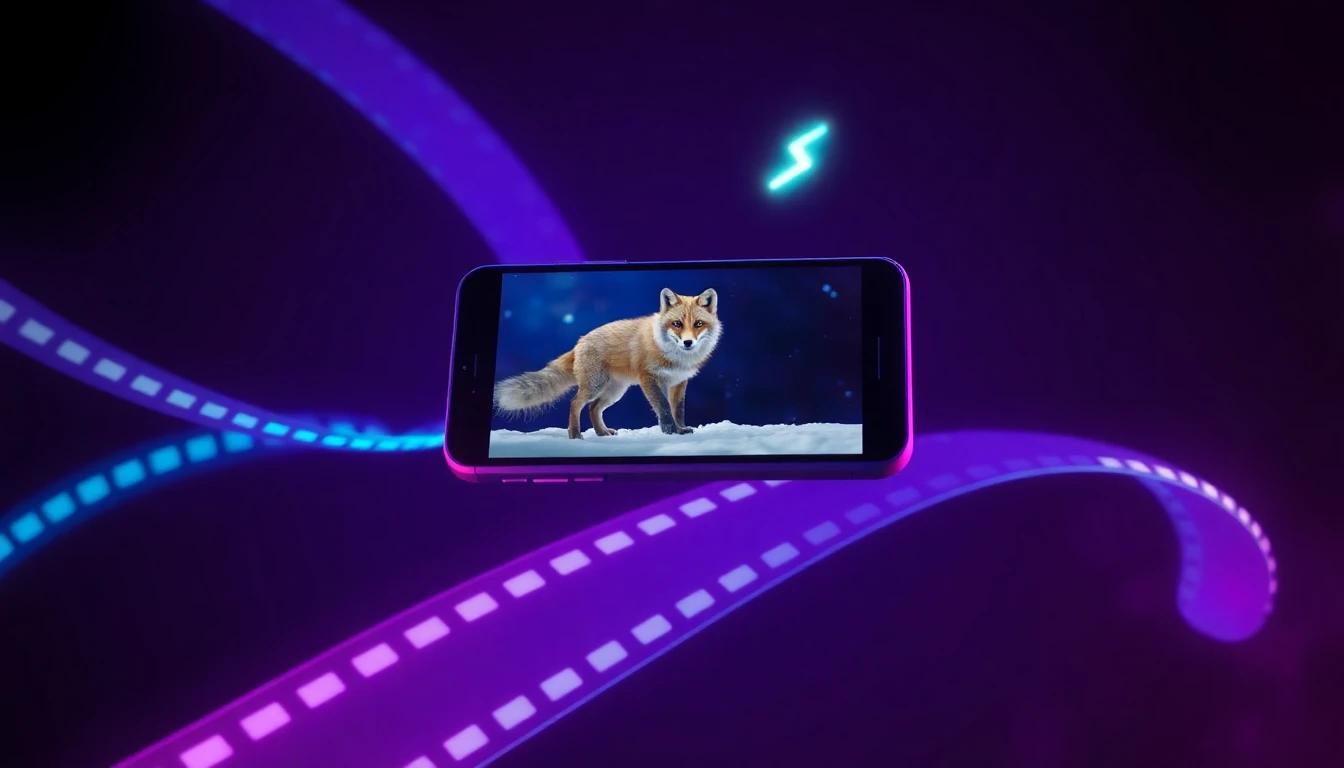
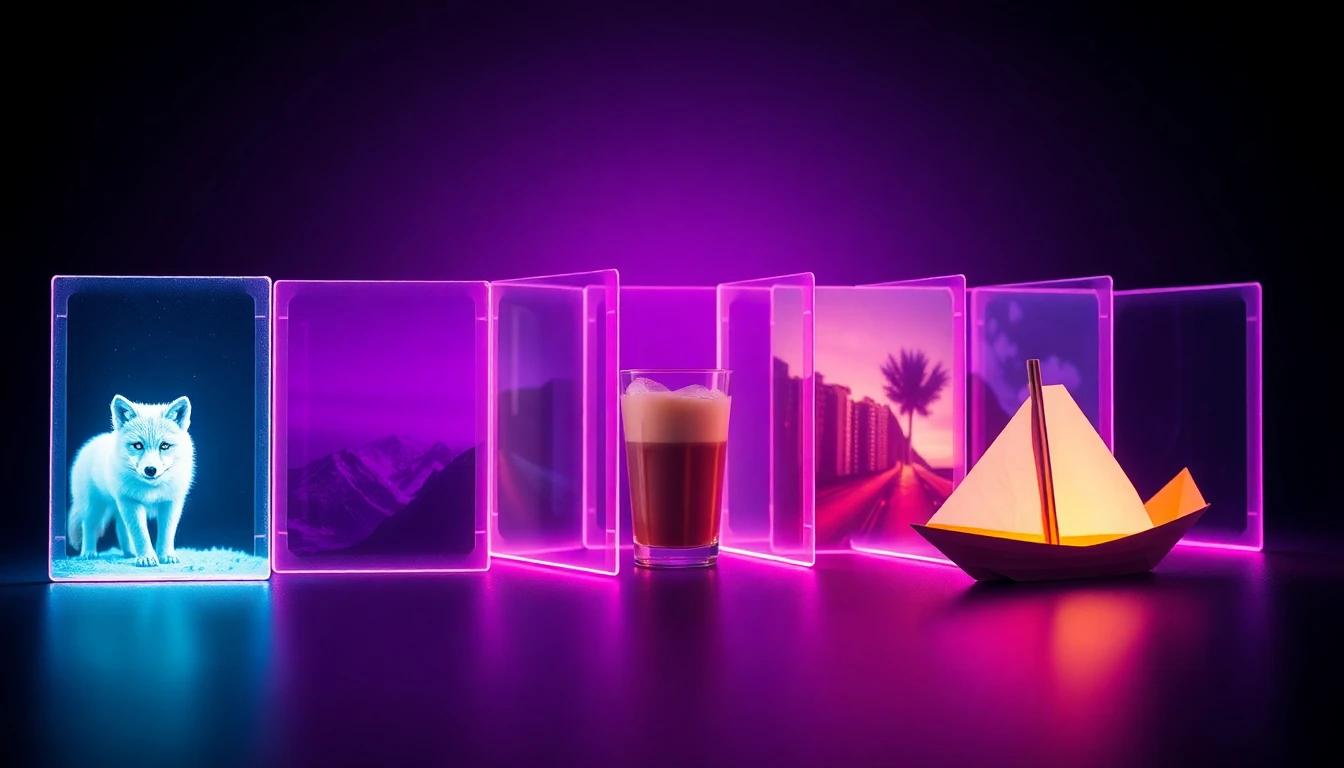
- A red fox trotting through fresh snow at dawn, low tracking shot, soft golden light.
- A glass of iced coffee on a café table, condensation sliding down, slow push-in, shallow depth of field.
- A skateboarder jumping a staircase at sunset, slow-motion side view, warm backlight.
- A paper boat floating down a rainy street gutter, camera follows at water level.
- A robot chef flipping a pancake in a neon kitchen, medium shot, steam rising.
- A hot air balloon lifting off over green hills, wide aerial shot, gentle drift.
- Ocean waves rolling onto a black sand beach, static camera, moody blue hour.
- A cat stretching on a sunny windowsill, close-up, dust floating in the light.
- A vintage car driving through a neon city in the rain, rear tracking shot.
- A single candle flame flickering in a dark room, extreme close-up, slow breathing motion.
Add a negative prompt such as "blur, distortion, text, watermark" if you see artefacts. More examples are in the AI video prompt library.
How Do You Animate a Photo With PixVerse 6?
To animate a photo with PixVerse 6, choose image-to-video, upload a sharp picture with one clear subject and describe only the movement. The model keeps the look of your photo and adds motion on top.
Follow these rules for natural results:
- Describe a single motion, such as "hair moves in the wind", not a list of actions.
- Add one camera instruction, such as "slow push-in".
- Match the aspect ratio to the photo, for instance 9:16 for portraits.
- Keep the clip short for faces; 5 seconds drifts less than 15.
The full method is in the guide to AI video generation from images. If you plan to post the result, check the aspect ratio guide.
When Should You Use a Different Model Than PixVerse?
Switch away from PixVerse 6 when you need higher resolution, lip-synced speech or the most realistic motion. A 360p draft is ideal for testing, but it is not meant for a final 1080p delivery.
- For realism and 1080p: Kling 3 Pro or Kling 3 Standard, with clips of 3 to 15 seconds. See the Kling model page.
- For cinematic audio: Veo 3.1 or Sora 2, covered on the Veo page and the Sora page.
- For long, controlled shots: Seedance 2.5 and WAN models, see Seedance and WAN.
A sensible workflow is to test the idea in PixVerse 6, lock the prompt, then re-run it on a premium model for the final clip.
Frequently Asked Questions
What is the PixVerse AI video generator?
PixVerse is a family of AI video models, and in VIBE you can use PixVerse 6 for text-to-video and image-to-video clips of 5 to 15 seconds. VIBE is an AI video generator app that lets you create stunning videos from text prompts or images using the latest AI models like Kling, Sora, and Veo.
Is PixVerse free in VIBE?
PixVerse 6 is a free-tier model in the VIBE catalog, so you can try it without a premium plan. Free exports carry a watermark, and limits can change, so check the app.
What resolution does PixVerse 6 generate in VIBE?
PixVerse 6 generates 360p video in VIBE. Use it for fast drafts and switch to a 720p or 1080p model for final clips.
How long can a PixVerse video be?
A PixVerse 6 clip in VIBE can be 5, 8, 10 or 15 seconds long. It costs 7 tokens per second.
Can PixVerse turn a photo into a video?
Yes, PixVerse 6 supports image-to-video, so you can upload a photo and add a short motion prompt. It works in your browser in VIBE.
Does PixVerse 6 make videos with sound?
Audio is optional in PixVerse 6, and the toggle is off by default in VIBE. Turn it on before you generate if you want sound.
Compare different complimentary AI video creation services.
VIBE is a free AI video generator app for the web with several free-tier models, including PixVerse 6, Seedance Pro Fast, LTX 2.5 Fast and PRUNA V.
Conclusion
The PixVerse AI video generator in VIBE is a fast, free-tier way to turn text or photos into 5 to 15 second clips in 16:9, 9:16 or 1:1. Use PixVerse 6 for quick drafts at 360p, lock your prompt, then move to a higher-resolution model for the final version. VIBE brings all of these AI video models together in one app for the web, so you can compare them with the same prompt. Try VIBE in your browser and make your first PixVerse clip today.